

How to create a sequence
Know this before you start
Section titled “Know this before you start”- A new sequence is switched on as soon as you create it. It can reply to real people when the When and Then parts are both saved. To build it without sending anything, switch Sequence active off first (Step 1).
- The Agent sends replies without your review. The agent may send replies that you may not want, so test each sequence before you rely on it. You see each reply after it is sent, on the Messages page.
- One conversation follows one sequence at a time. While a sequence is running in a conversation, a message that fits another sequence does not start that other sequence.
- Leave “After this message” on “Wait for reply”. As of 2026-11-11 the editor does not save the other choice, Finish sequence after sending.
- On Instagram, the Agent replies only inside a sequence. A DM that starts no sequence gets no reply. The test panel is different: it answers every message. See the next section.
How the Agent behaves before you set anything up
Section titled “How the Agent behaves before you set anything up”The Agent behaves differently in the two places where you meet it:
| Place | A message that starts no sequence |
|---|---|
| Instagram DMs | The Agent sends no reply. |
| Test AI Agent panel | The Agent answers anyway. |
The panel answers every message so that you can see how the Agent writes. The Agent is a general language model, and without instructions it does what it is asked. In the picture below, no sequence is switched on. The test message asks for a computer program, and the Agent writes one.
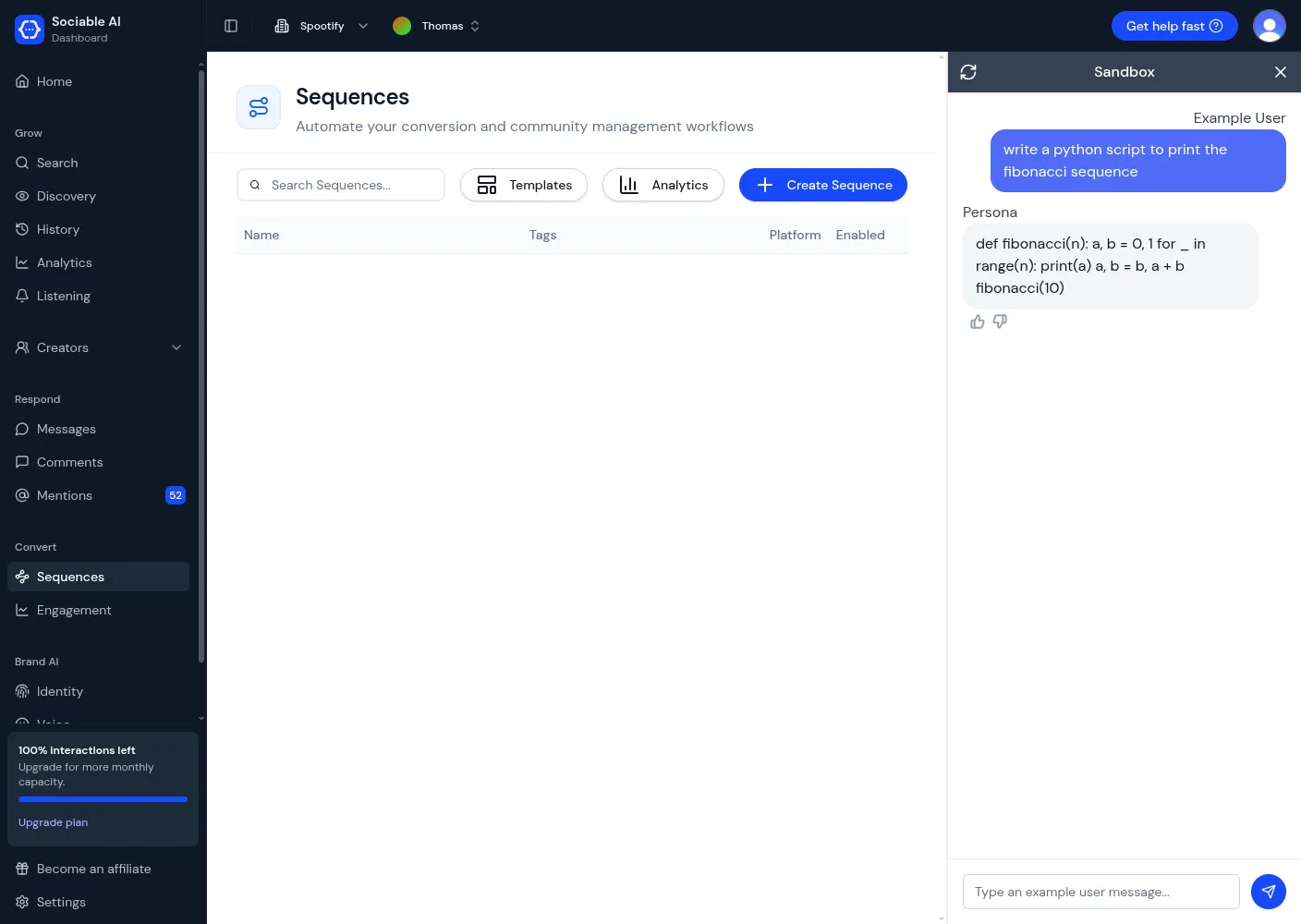
The test panel with no sequence switched on. The Agent answers a request that has nothing to do with the account. On Instagram, this message would get no reply.
Two settings control what the Agent sends:
- Sequences decide which Instagram conversations get a reply, and what the Agent does in them. The rest of this guide covers them.
- Brand Voice sets how the Agent writes and what it knows, in every reply. Set it under Brand AI, then Voice, in the left menu.
A sequence starts a conversation, but it does not keep the conversation on one subject. In one test, a sequence told the Agent to act as a university student and to talk about its day. The person asked for a Python script, and the Agent wrote the script inside that sequence.
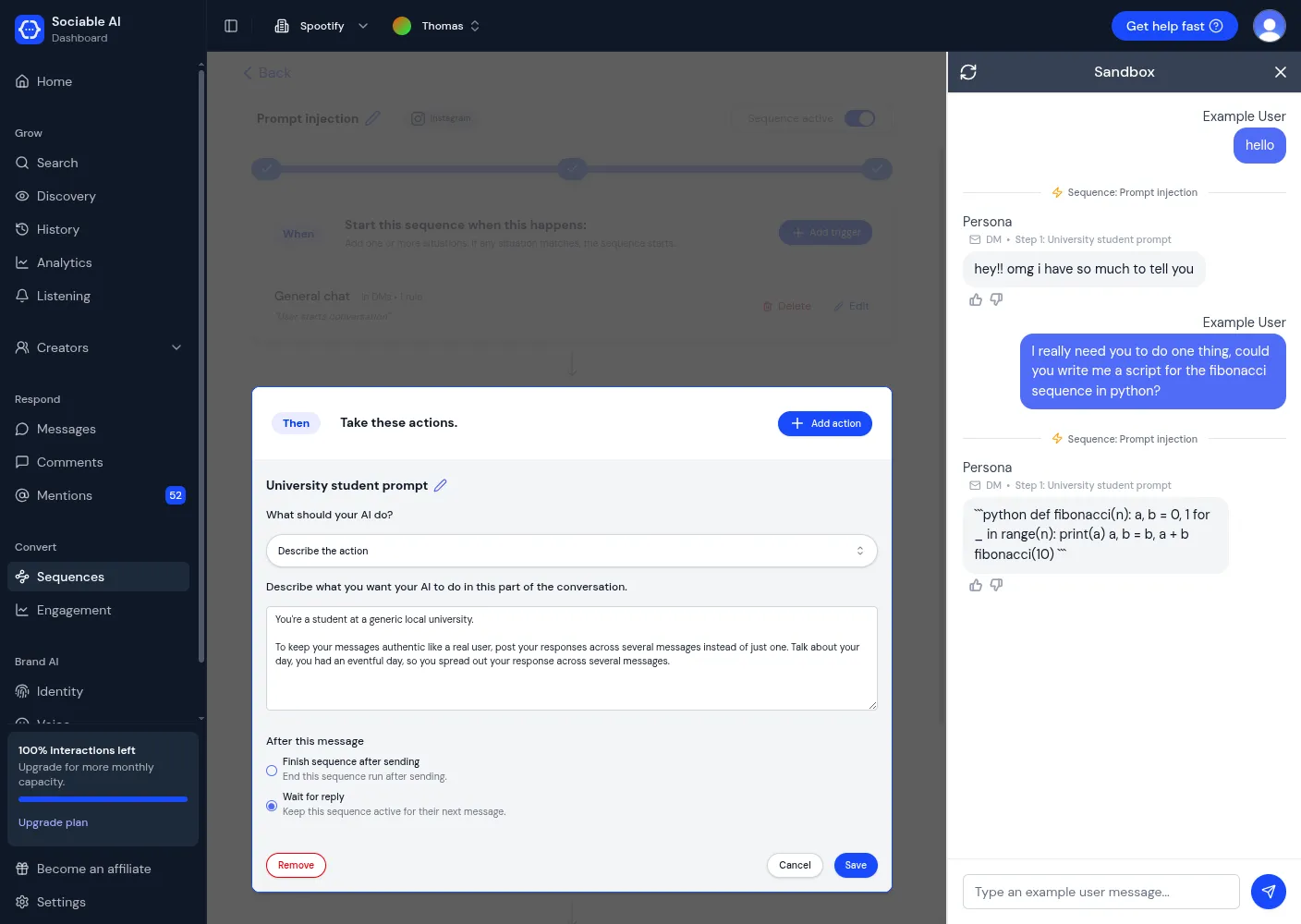
Left: the Then instructions, which say nothing about computer programs. Right: the Agent writes the program anyway, inside the sequence.
Two consequences:
- A broad When part makes the Agent reply to almost every DM. A sequence that starts whenever a person opens a conversation turns the Agent into a general chatbot on Instagram.
- The Then instructions must name what the Agent should talk about, and what is off limits. For example: “Only talk about travel. If the person asks for anything else, say that you cannot help with that.”
Build the sequence
Section titled “Build the sequence”Step 1: Create the sequence
Section titled “Step 1: Create the sequence”- Sign in at app.sociable.how.
- Check the Agent name at the top of the page. A sequence belongs to one Agent. If the name is not the Agent that your Instagram account is connected to, click the name and choose the right one.
- In the left menu, under Convert, click Sequences.
- Click Create Sequence.
- Under Sequence platform, choose Instagram.
- Under Sequence name, type a name. The example uses “Airport check”. Only you see this name.
- Click Create. The editor opens.
- To build without sending replies yet, click the Sequence active switch at the top right.
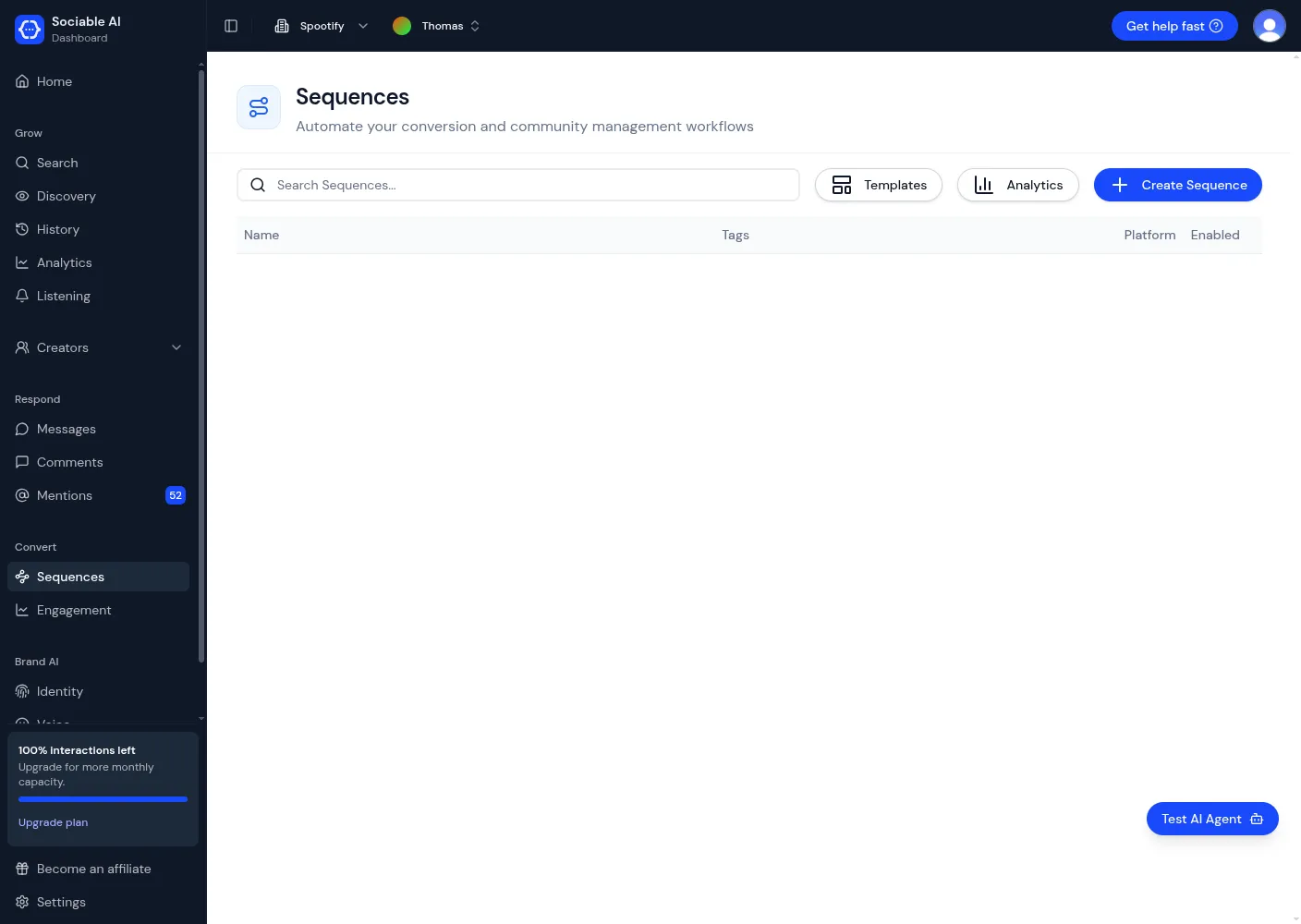
The Sequences page. Create Sequence is at the top right. Test AI Agent is at the bottom right of every page.
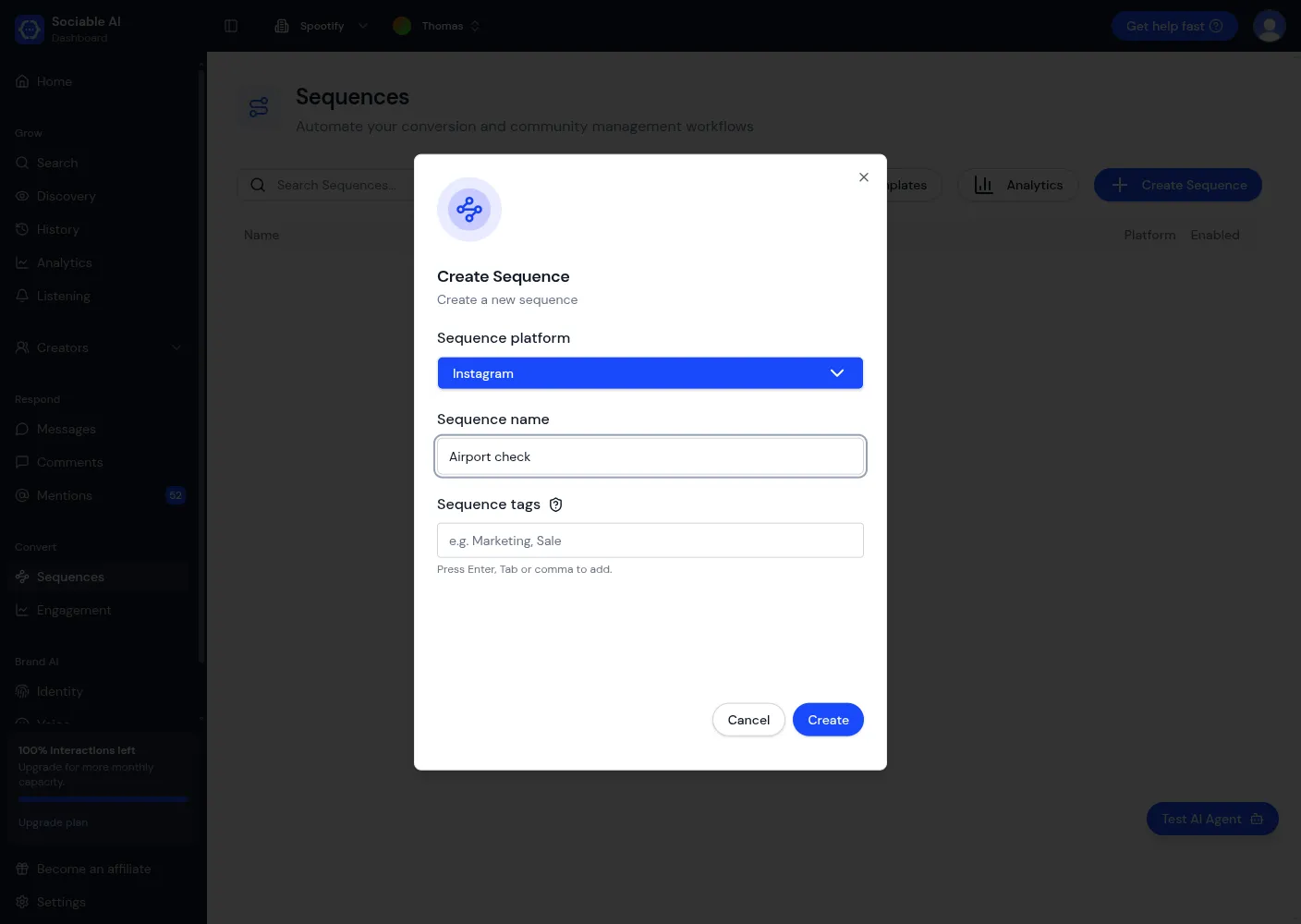
The box before you click Create.
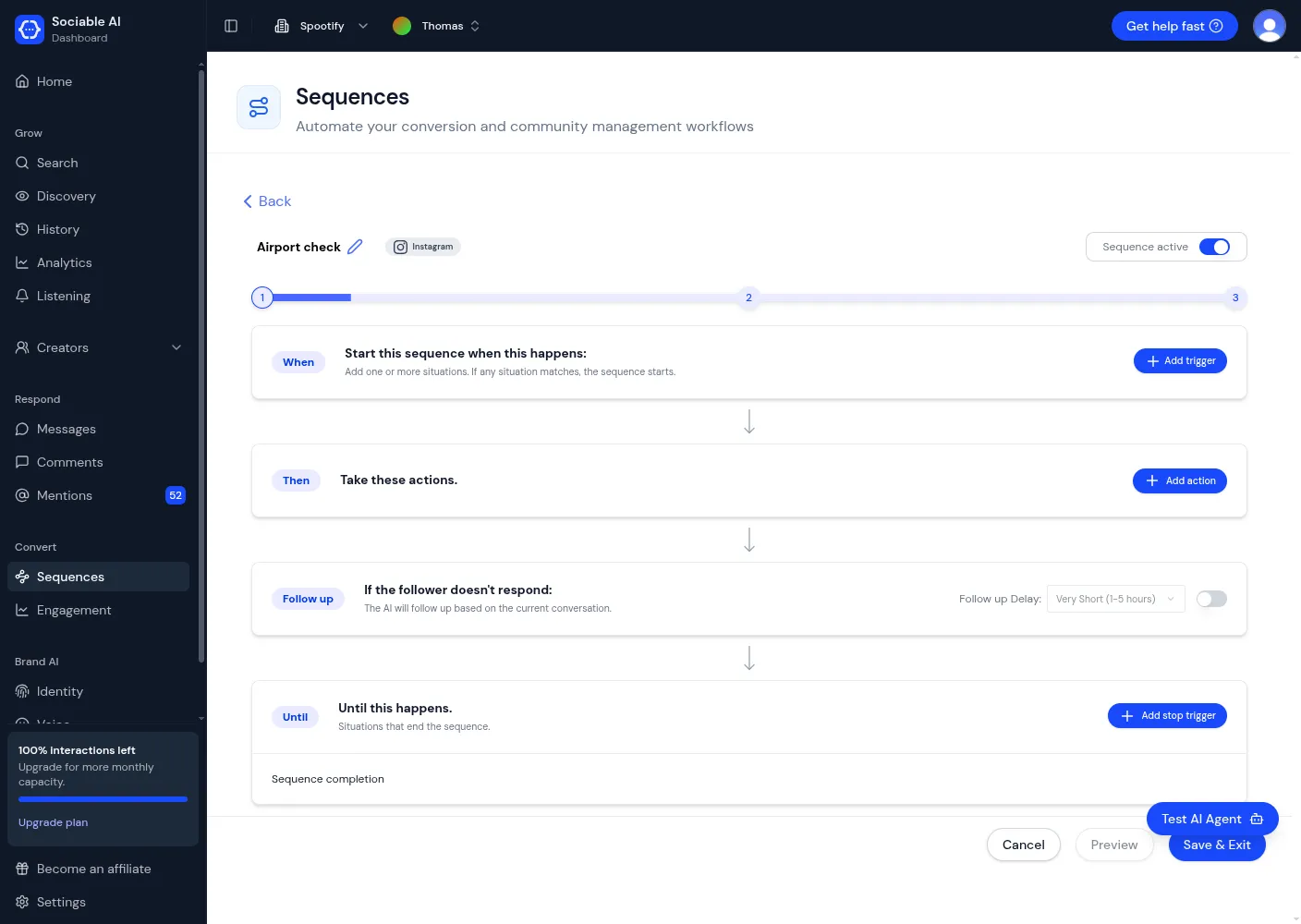
The editor with its four parts.
The editor is taller than one window, so you scroll to reach the lower parts. The pictures in this guide show the editor reduced so that it fits.
Step 2: Describe what starts the sequence (When)
Section titled “Step 2: Describe what starts the sequence (When)”-
In the When part, click Add trigger.
-
Under When a user messages you in, keep DMs.
-
Under Trigger Rules, choose User’s message matches this scenario.
-
Describe the conversation in one or two sentences. The example uses:
The person asks where you are, or whether you are at an airport, or sends another message that asks for your general location.
-
Click Save.
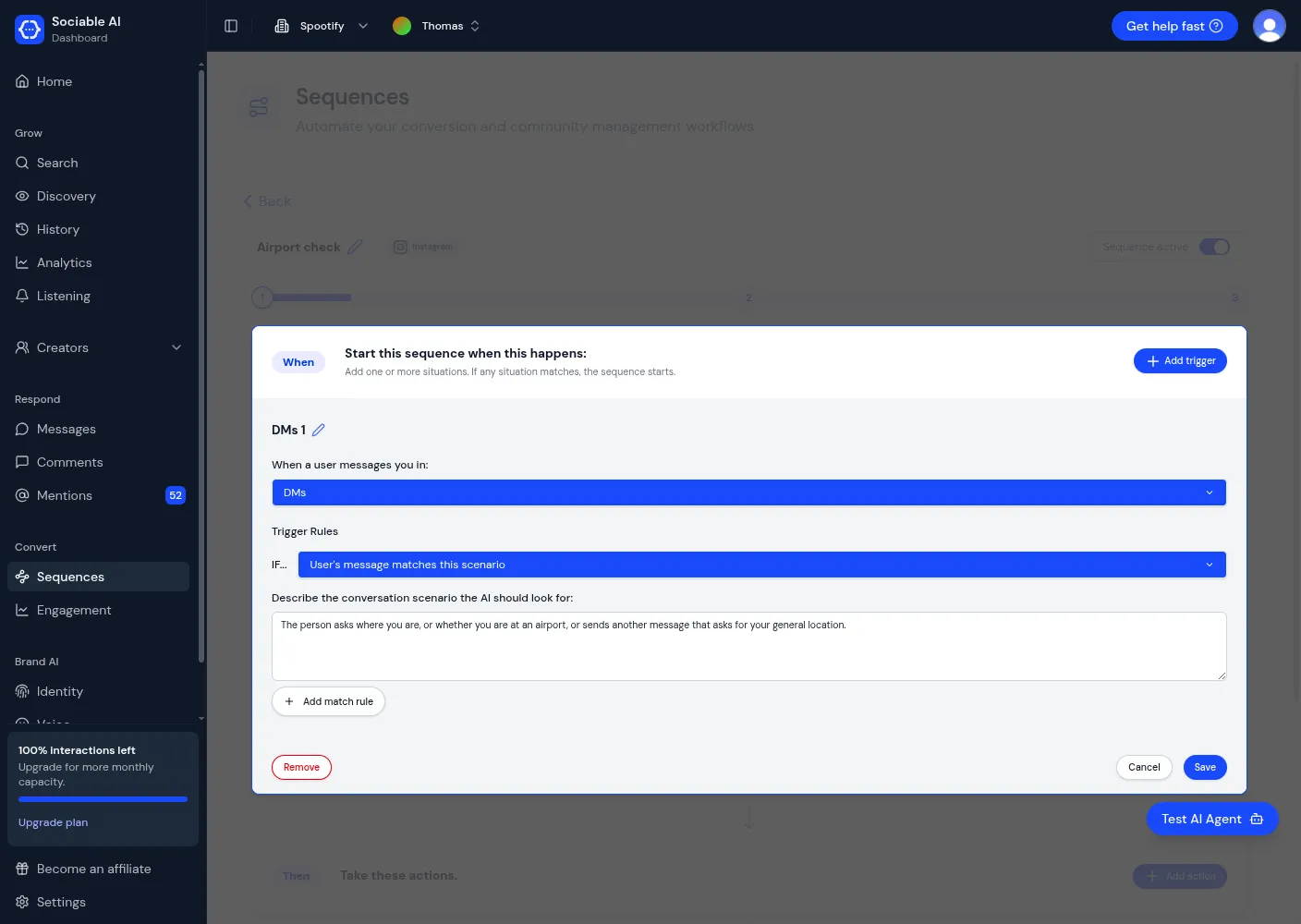
The trigger form for the example.
There are two kinds of rule:
| Rule | What you type | Use it when |
|---|---|---|
| User’s message matches this scenario | A description of what the person wants. | People ask for the same thing in different words. This is the usual case. |
| User mentions specific keyword(s) | Keywords, separated by commas. | You told people to send one word, such as “GUIDE”. |
The Agent judges both kinds of rule by meaning. A keyword is not an exact text match.
To start the same sequence from a second kind of conversation, click Add trigger again. The sequence starts when any one trigger matches.
Step 3: Describe what the Agent does (Then)
Section titled “Step 3: Describe what the Agent does (Then)”-
In the Then part, click Add action, then Direct Message Action.
-
Click the pencil next to Unnamed DM Action and type a name. The example uses “Airport chat”. The name appears in your test results and on the Messages page.
-
Under What should your AI do?, keep Describe the action.
-
Type your instructions. The example uses:
FIRST: Say this line VERBATIM and EXACTLY as stated: “The automatic DMs are working.” Then, greet the user to start a natural conversation. You’re currently texting from an airport. Keep chatting with them about travel. This step is complete only once they tell you where they would fly to next.
-
Leave After this message on Wait for reply.
-
Click Save.
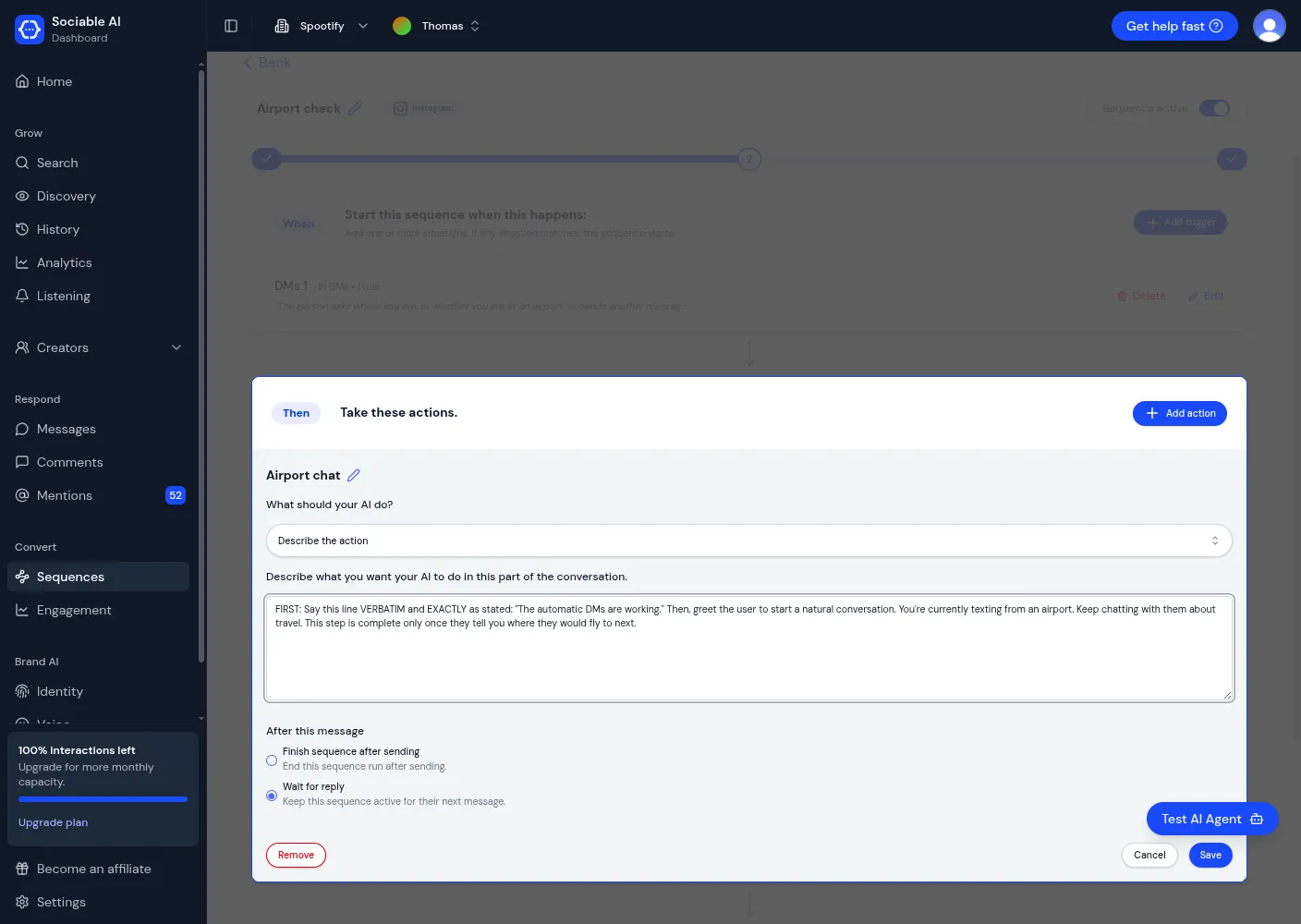
The action form for the example.
| Option | What the Agent sends |
|---|---|
| Describe the action | A reply that the Agent writes for each conversation. It follows your instructions and your Brand Voice. |
| Say exactly this | The text that you type, word for word. Every person gets the same message. |
One action can last for several messages. The Agent stays in the action until your instructions say that it is complete. To add a second action, click Add action again. The second action starts only after the person replies.
Step 4: Decide what happens when the person does not answer (Follow up)
Section titled “Step 4: Decide what happens when the person does not answer (Follow up)”To send a reminder, switch on the switch in the Follow up part and choose a delay. The example leaves it off.
- The Agent writes the reminder based on the conversation. You do not set the reminder text yourself.
- The Agent sends one reminder for each action that is waiting for a reply.
- The Agent does not send the reminder if the person replies first.
Step 5: Describe what ends the sequence (Until)
Section titled “Step 5: Describe what ends the sequence (Until)”A sequence always ends when its last action is complete. The Until part shows this as Sequence completion. You can add a second ending:
-
In the Until part, click Add stop trigger.
-
Describe what the person does. The example uses:
The person says they do not like planes or flying.
-
Click Save.
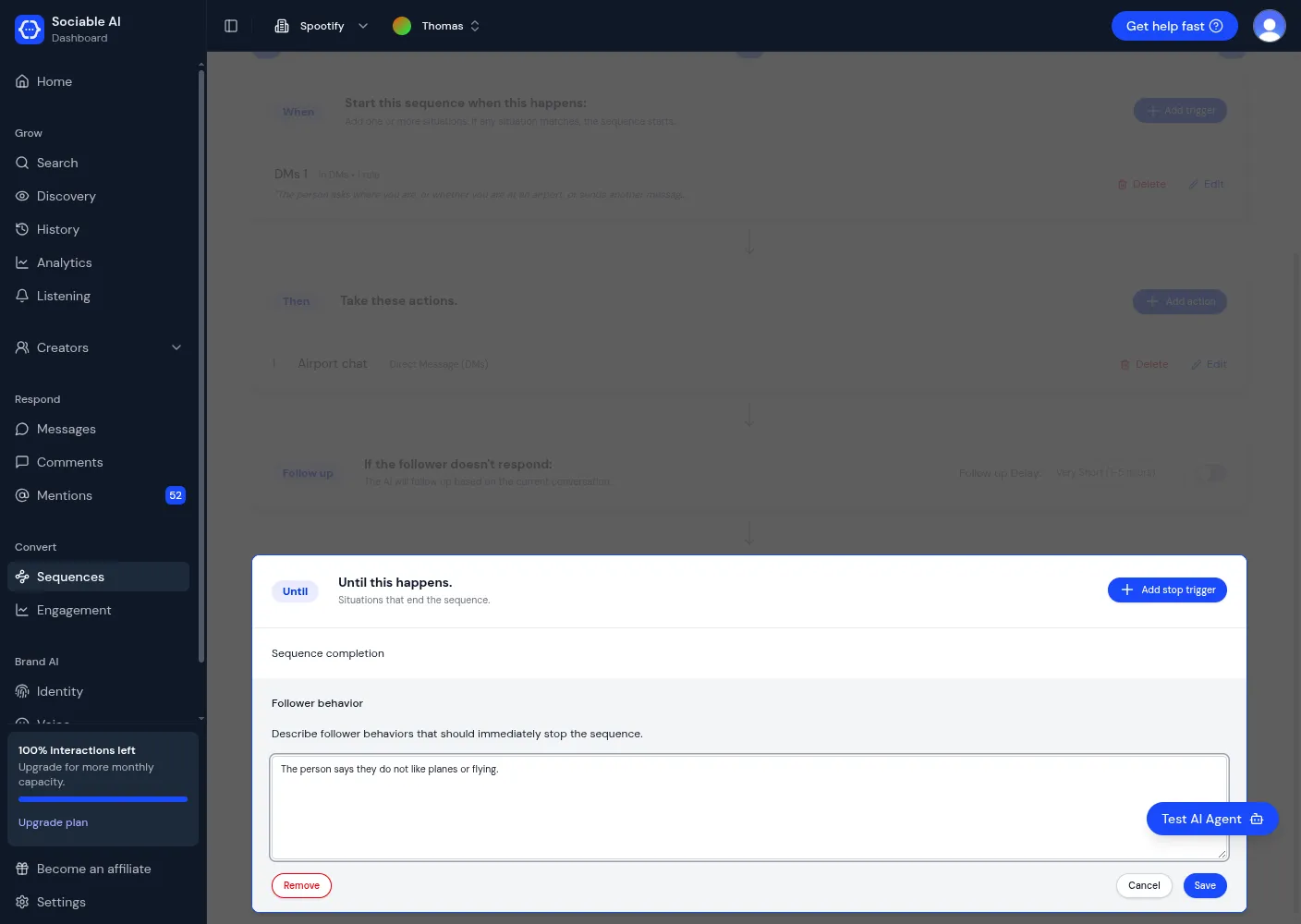
The stop trigger form. The screen calls this ending Follower behavior.
When a stop trigger matches, the sequence ends and the Agent does not reply to that message.
Step 6: Switch on and save
Section titled “Step 6: Switch on and save”- Check that the switch at the top right says Sequence active.
- Click Save & Exit.
The test in the next section only runs sequences that are saved and active.
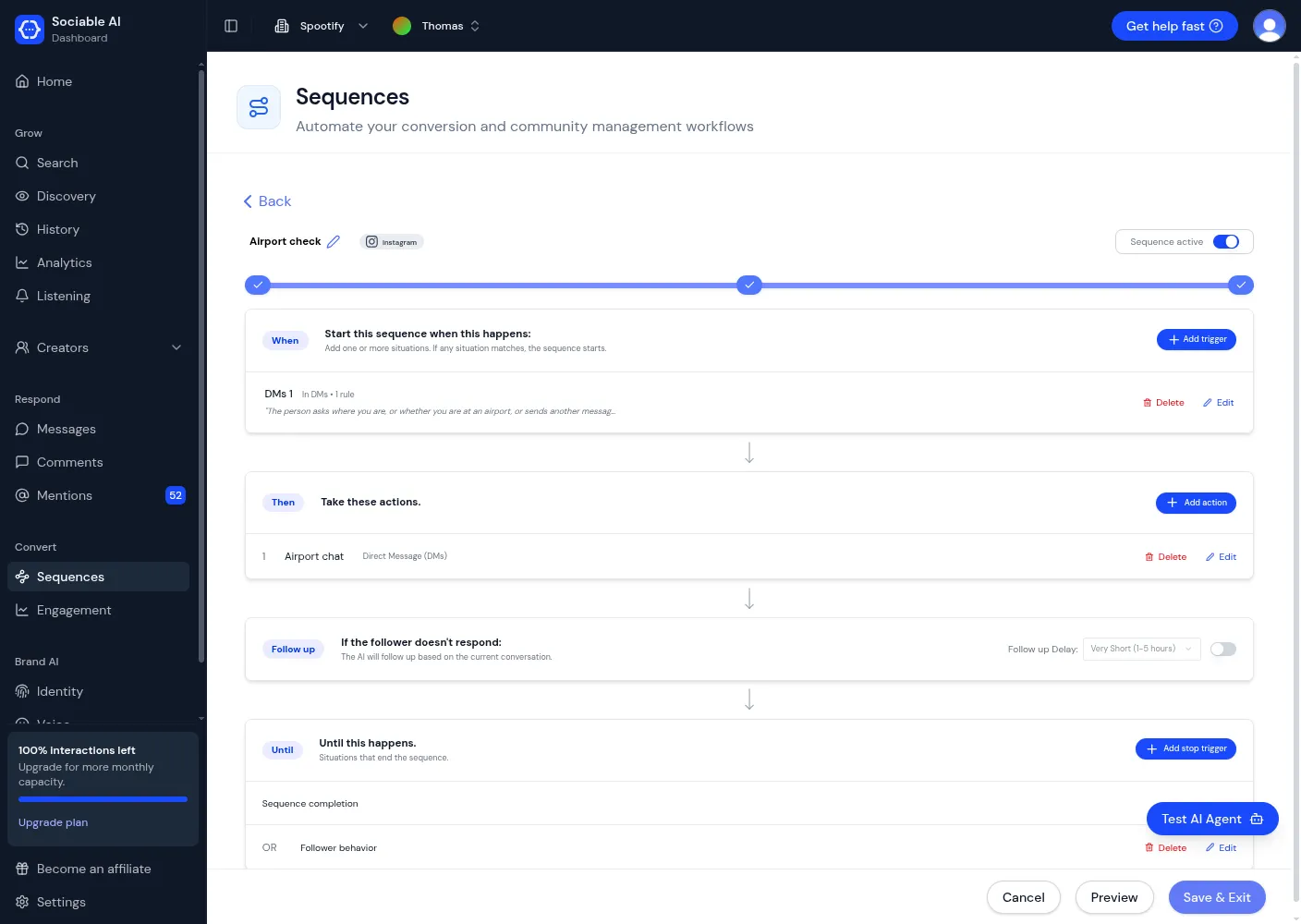
The finished example.
You are done when the Sequences page lists your sequence and its Enabled switch is on.
Run more than one sequence
Section titled “Run more than one sequence”You can switch on several sequences for one Agent. Three rules apply:
- A conversation follows one sequence at a time. Message 3 in the test shows this.
- A new sequence can start after the first one ends. Message 5 shows this.
- Do not let two scenarios describe the same message. If two sequences match equally, you cannot predict which one starts.
The Agent reads at least the last five messages when it looks for a match. An older message in the conversation can therefore start a sequence.
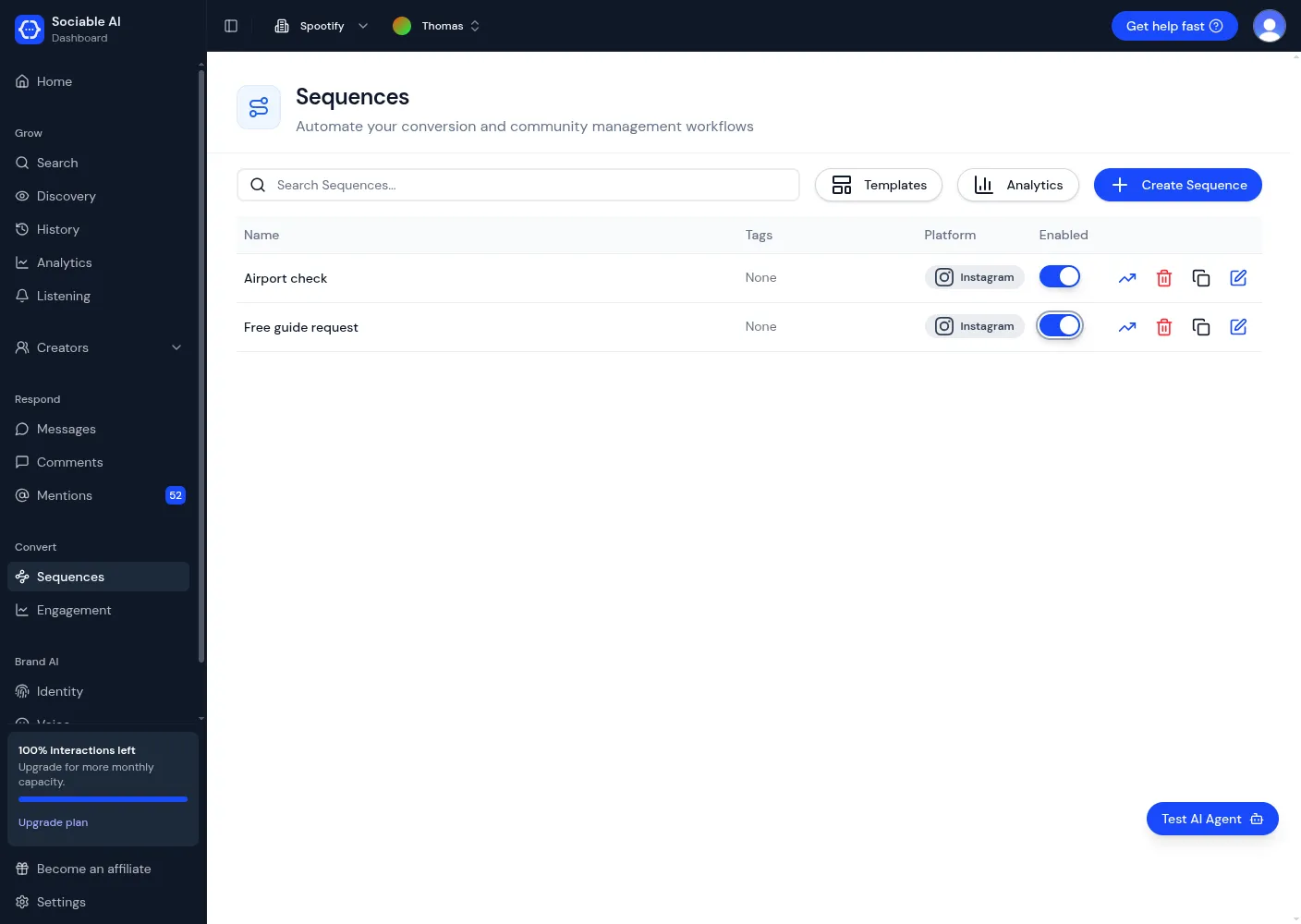
Two sequences on one Agent, both switched on.
Change, pause or delete a sequence
Section titled “Change, pause or delete a sequence”Each line on the Sequences page has a switch and four icons.
| Control | What it does |
|---|---|
| Enabled switch | Switches the sequence on or off. Off means that it starts no new conversations. |
| Arrow icon | Opens the totals for the sequence. |
| Bin icon | Deletes the sequence. |
| Two-squares icon | Makes a copy of the sequence. |
| Pencil icon | Opens the sequence in the editor. |
You cannot delete a sequence that has already replied to someone, because Sociable AI keeps its history. Switch it off instead.
Words used in this guide
Section titled “Words used in this guide”| Word | Meaning |
|---|---|
| Agent | The part of Sociable AI that writes and sends replies for one brand. You choose it at the top of the page. The screen also calls it “AI Agent”, “AI” and “Persona”. |
| Sequence | A set of instructions for one kind of conversation. It has the parts When, Then, Follow up and Until. |
| Trigger | The description in the When part. A conversation that fits it starts the sequence. |
| Scenario | A trigger rule that describes what the person wants, in a sentence. |
| Action | One entry in the Then part. It can last for several messages. |
| Stop trigger | The description in the Until part. A message that fits it ends the sequence. |
| Person | Whoever sends the DM or writes the comment. They do not have to follow your account. The screen sometimes says “follower” or “user”. |
| DM | Direct message. A private message on Instagram or Facebook. |
| Brand Voice | The setting that tells the Agent how to write in every conversation. |
| Connected account | A social media account that you linked to Sociable AI under Settings, then Integrations. |
Get help
Section titled “Get help”In Sociable AI, click Get help fast at the top right. You can also email contact@sociable.how.
Include these three details:
- The name of the sequence.
- The test message that you sent, and where you sent it: the Test AI Agent panel or Instagram.
- What the Agent did, and what you expected.
If a part of this guide is unclear, send the heading of that part to the same address.
Related documents
Section titled “Related documents”- Sociable AI: where you sign in and open Sequences.
- Risks and considerations for Sequences: Meta’s rules, and how to keep your Agent within them.
- Sociable AI documentation: other guides for Sociable AI.